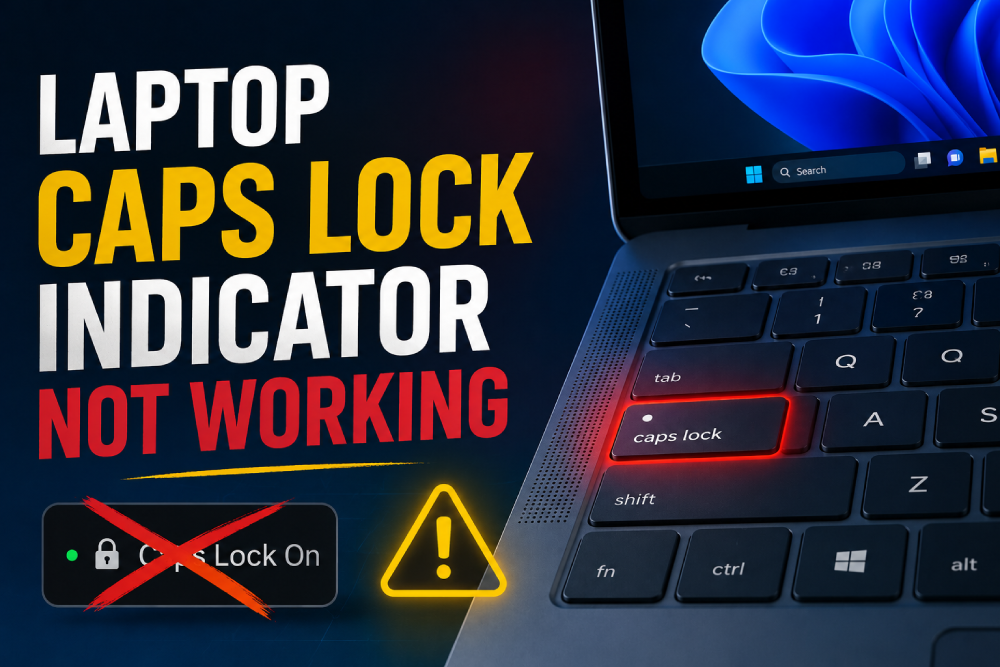
So you press Caps Lock and the indicator light doesn’t turn on. The key still works and capitalizes letters, but you have no visual feedback.
This is annoying especially if you rely on the indicator to know if Caps Lock is on or off.
The good news is this is usually a software or settings issue, not a broken LED. Your keyboard is probably fine. Let me show you what actually fixes this.
Check if Caps Lock actually works
First, make sure the key itself is working.
- Open a text editor or notepad
- Press Caps Lock
- Type some letters
- If they’re capitalized, Caps Lock is working but the light is broken
- If they’re not capitalized, the key itself might be the issue
If the key works but the light doesn’t, it’s probably a software or driver issue.
Restart your computer
Yeah, the classic restart. But it actually helps for keyboard indicator issues sometimes.
- Restart your computer
- Press Caps Lock and check if the light comes on
Sometimes Windows just gets stuck in a weird state and a fresh boot fixes it.
Update keyboard drivers
Old or corrupted keyboard drivers can cause indicator lights to stop working.
- Press Windows + X and pick Device Manager
- Expand Keyboards
- Right-click your keyboard
- Select Update driver
- Choose Search automatically for drivers
If Windows doesn’t find anything, go to your laptop manufacturer’s website and grab the latest keyboard drivers.
Disable and re-enable the keyboard
Sometimes the keyboard driver just needs a reset.
- Open Device Manager
- Expand Keyboards
- Right-click your keyboard
- Select Disable device
- Wait a few seconds
- Right-click it again and pick Enable device
This forces Windows to reinitialize the keyboard hardware.
Check Windows Mobility Center
Some laptops have keyboard settings in Windows Mobility Center.
- Press Windows + X and pick Mobility Center
- Look for keyboard backlight or indicator settings
- Make sure indicators are enabled
Not all laptops have this, but it’s worth checking.
Check BIOS settings
Some laptops have keyboard indicator settings in BIOS.
- Restart your laptop and enter BIOS (usually F2, F10, or Delete key)
- Look for keyboard or indicator settings
- Make sure keyboard indicators are enabled
- Save and exit BIOS
This is more advanced, so only do this if you’re comfortable with BIOS settings.
Check for keyboard software
Some laptops have manufacturer-specific keyboard software like HP Support Assistant, Dell Update, or Lenovo Vantage.
- Open your laptop manufacturer’s software
- Look for keyboard settings
- Check if keyboard indicators are enabled
Sometimes these settings get changed by accident.
Run the Keyboard troubleshooter
Windows has a built-in troubleshooter for keyboard issues.
- Press Windows + I for Settings
- Go to System → Troubleshoot
- Click Other troubleshooters
- Run the Keyboard troubleshooter
This can sometimes detect and fix keyboard-related issues automatically.
Check for Windows updates
Sometimes Windows updates fix keyboard issues.
- Go to Settings
- Windows Update
- Check for updates
- Install everything available
- Restart
What usually causes this
Most of the time it’s:
- Keyboard driver issues
- Windows update breaking something
- Keyboard software settings changed
- BIOS settings changed
- Windows Mobility Center settings
Sometimes it’s:
- Broken LED (hardware issue)
- Loose connection inside the laptop
- Keyboard hardware failure
What NOT to do
Don’t download random keyboard fix tools from the internet. Most are garbage or malware. Stick to Windows tools and official drivers.
Don’t keep pressing Caps Lock over and over. If it didn’t work the first few times, it probably won’t work now.
Don’t assume your keyboard is broken immediately. Most indicator light issues are software-related, not hardware.
When the indicator is actually broken
If you’ve tried everything and the light still doesn’t work:
- The Caps Lock key doesn’t work at all
- Other indicator lights (Num Lock, Scroll Lock) also don’t work
- The keyboard has physical damage
- The keyboard is very old and components are failing
In these cases, the LED might actually be broken. You might need to get the keyboard repaired or use an external keyboard.
Where to start
Start with checking if Caps Lock actually works and restarting your computer. Those fix a surprising number of cases.
If that doesn’t work, update your keyboard drivers and check Windows Mobility Center.
For stubborn stuff, try disabling and re-enabling the keyboard in Device Manager, or check BIOS settings if you’re comfortable with that.
Most indicator light issues are fixable without replacing the keyboard. Just work through these systematically and you’ll probably find the actual problem.
Quick FAQ
Is my keyboard broken?
Not necessarily. Most indicator light issues are software. Try the fixes above before assuming hardware failure.
Why did this happen suddenly?
Usually a Windows update, driver update, or settings change. Rarely random.
Can I still use the keyboard without the indicator?
Yeah, the keyboard still works fine. You just won’t have visual feedback for Caps Lock. You can use on-screen keyboard indicators as a workaround.
Does this work on Windows 10?
Yeah, most of these fixes work on Windows 10 too. Settings might be in slightly different places though.