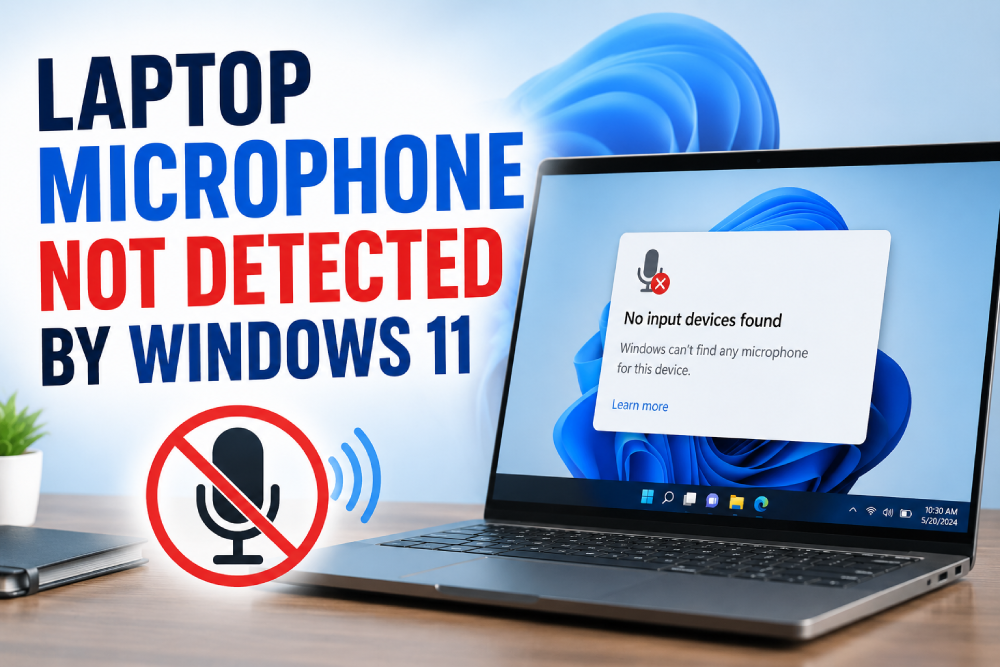
So you try to use your laptop microphone for a call or recording and Windows 11 doesn’t even detect it. It’s like the microphone doesn’t exist.
This is frustrating especially when you need it for work, school, or just talking to people.
The good news is this is usually a software or settings issue, not a broken microphone. Your hardware is probably fine. Let me show you what actually fixes this.
Check if the microphone is enabled in settings
Sometimes the microphone gets disabled by accident.
- Press Windows + I for Settings
- Go to System → Sound
- Under Input, check if your microphone is listed
- If it is, click on it and make sure it’s not disabled
- If it’s not listed, your microphone isn’t being detected at all
Restart your computer
Yeah, the classic restart. But it actually helps for microphone issues sometimes.
- Restart your computer
- Check Sound settings again to see if the microphone shows up
Sometimes Windows just gets stuck in a weird state and a fresh boot fixes it.
Check microphone privacy settings
Windows 11 has strict privacy settings that can block microphone access.
- Go to Settings → Privacy & security
- Click Microphone
- Make sure Microphone access is turned on
- Make sure Let apps access your microphone is turned on
- Check that the apps you need have microphone permission
If microphone access is disabled, Windows won’t detect it properly.
Update audio drivers
Old or corrupted audio drivers can cause microphone detection issues.
- Press Windows + X and pick Device Manager
- Expand Audio inputs and outputs
- Right-click your microphone
- Select Update driver
- Choose Search automatically for drivers
If Windows doesn’t find anything, go to your laptop manufacturer’s website and grab the latest audio drivers.
Disable and re-enable the microphone
Sometimes the microphone driver just needs a reset.
- Open Device Manager
- Expand Audio inputs and outputs
- Right-click your microphone
- Select Disable device
- Wait a few seconds
- Right-click it again and pick Enable device
This forces Windows to reinitialize the microphone hardware.
Uninstall and reinstall the microphone
This forces Windows to reinstall the driver fresh.
- Open Device Manager
- Expand Audio inputs and outputs
- Right-click your microphone
- Select Uninstall device
- Restart your computer
Windows will automatically reinstall the microphone and its driver after restart.
Run the Audio troubleshooter
Windows has a built-in troubleshooter for audio issues.
- Press Windows + I for Settings
- Go to System → Troubleshoot
- Click Other troubleshooters
- Run the Playing Audio troubleshooter
This can sometimes detect and fix audio input issues automatically.
Check if the microphone is disabled in BIOS
Sometimes the microphone is disabled in BIOS/UEFI settings.
- Restart your laptop and enter BIOS (usually F2, F10, or Delete key)
- Look for audio or microphone settings
- Make sure the internal microphone is enabled
- Save and exit BIOS
This is more advanced, so only do this if you’re comfortable with BIOS settings.
Check for physical damage
Take a close look at your microphone.
- If your microphone has a physical mute button, make sure it’s not muted
- Check if there’s any physical damage to the microphone port
- If you’re using an external microphone, try a different one
Physical damage means you might need to get the microphone repaired or replaced.
Try a different app
Sometimes the issue is with a specific app, not Windows.
- Try the microphone in a different app (Sound Recorder, Zoom, Teams, Discord)
- If it works in other apps but not one specific app, the app is the problem
Check Windows updates
Sometimes Windows updates fix microphone issues.
- Go to Settings
- Windows Update
- Check for updates
- Install everything available
- Restart
What usually causes this
Most of the time it’s:
- Microphone disabled in settings
- Privacy settings blocking microphone access
- Audio driver issues
- Microphone disabled in BIOS
- Windows update breaking something
Sometimes it’s:
- Physical damage to the microphone
- Hardware failure
- Corrupted Windows audio system
What NOT to do
Don’t download random microphone fix tools from the internet. Most are garbage or malware. Stick to Windows tools and official drivers.
Don’t keep restarting your computer over and over without trying other fixes. If it didn’t work the first few times, it probably won’t work now.
Don’t assume your microphone is broken immediately. Most microphone detection issues are software-related, not hardware.
When your microphone is actually broken
If you’ve tried everything and the microphone still isn’t detected:
- The microphone doesn’t show up in Device Manager at all
- Device Manager shows a yellow exclamation mark on the microphone
- There’s physical damage to the microphone
- The microphone worked before but suddenly stopped completely
In these cases, your microphone might actually be broken. You might need to get it repaired or use an external microphone as a workaround.
Where to start
Start with checking microphone settings and privacy settings. Those fix a surprising number of cases.
If that doesn’t work, update your audio drivers and run the Audio troubleshooter.
For stubborn stuff, try disabling and re-enabling the microphone in Device Manager, or uninstall and reinstall the driver.
Most microphone detection issues are fixable without replacing hardware. Just work through these systematically and you’ll probably find the actual problem.
Quick FAQ
Is my microphone broken?
Not necessarily. Most microphone detection issues are software. Try the fixes above before assuming hardware failure.
Why did this happen suddenly?
Usually a Windows update, driver update, or privacy setting change. Rarely random.
Can I use an external microphone?
Yeah, if your laptop microphone is broken, an external USB microphone works fine. Windows detects it automatically.
Does this work on Windows 10?
Yeah, most of these fixes work on Windows 10 too. Settings might be in slightly different places though.